Nirav
·
·
4 min
AI Menu Import That Just Works
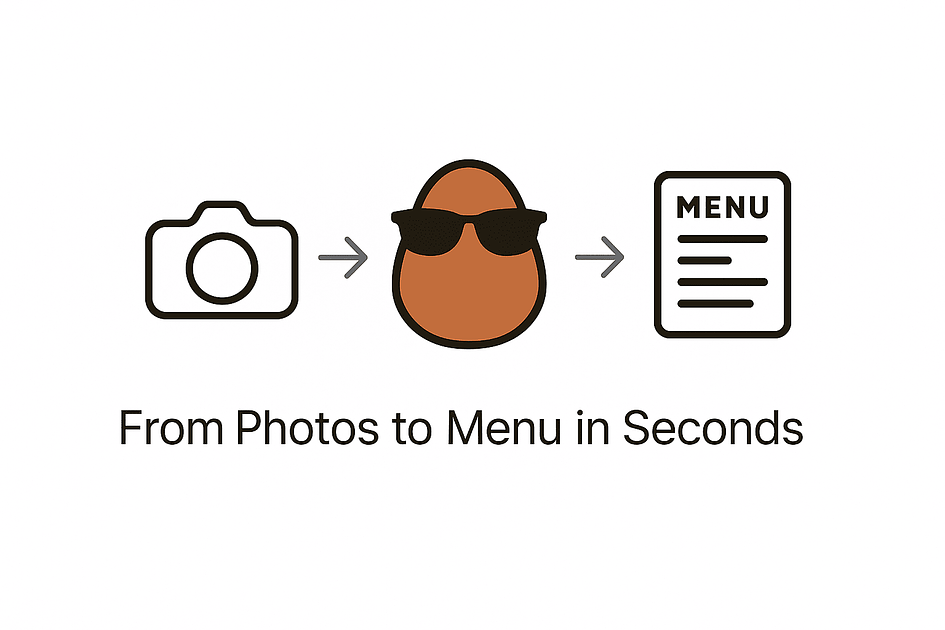
When I first asked a few restaurant owners to try The Lazy Potato, everything looked fine until we hit the same wall every single time:
“Looks good… but you want me to add each item manually?”
Fair point. Nobody who has spent the whole day managing staff, billing suppliers, tracking stock, and handling customers wants to sit down at night and type out fifty menu items one by one. Honestly, even I didn’t want to do it. That’s when I realised something simple: the problem wasn’t the menu. The problem was the effort required to get started.
So I began searching for a real solution. The usual suggestions came up.
- “Use OCR?” It reads text, yes… but try giving it a menu with columns, combos, variants, borders, and funky fonts. It turns into alphabet soup.
- "CSV imports" Why will restaurant owners/managers have their menu in the CSV format?
- “Maybe hire someone to do it for them?” Honestly, why is this even on the list?
- “Users will do it manually.” No, they won’t. And they shouldn’t.
Then the obvious idea finally hit me.
I’m a programmer. We’re living in peak AI era. Why am I not letting AI do the boring work?
And the more I thought about it, the more it made sense. Every restaurant already has all the raw material needed: the menu itself. It might be a printed sheet, a PDF, a poster on the wall, or even a few photos saved on the phone. So instead of asking restaurant owners to retype what already exists, why not just let them:
Take photos of their menu or upload a PDF and let the app figure everything out?
A year ago, this would’ve been impossible or extremely unreliable. OCR could extract text, but it could never understand structure. A menu isn’t just a block of words. It has categories, item names, descriptions, prices, and sometimes add-ons or variants. OCR can’t magically convert all that into neat, predictable data.
Take photos of their menu or upload a PDF and let the app figure everything out?
A year ago, this would’ve been impossible or extremely unreliable. OCR could extract text, but it could never understand structure. A menu isn’t just a block of words. It has categories, item names, descriptions, prices, and sometimes add-ons or variants. OCR can’t magically convert all that into neat, predictable data.
But AI today? You can literally send it an image and say: “Give me all the categories and items in clean JSON so I can build a menu.” And it politely hands it back like a well-trained sous chef.
The tricky part wasn’t the AI model itself. The real challenge was weaving this experience into the app so it feels effortless. Users shouldn’t know or care that behind the scenes I’m:
The tricky part wasn’t the AI model itself. The real challenge was weaving this experience into the app so it feels effortless. Users shouldn’t know or care that behind the scenes I’m:
- compressing images to keep AI costs down,
- feeding them into a model,
- validating the output,
- handling errors,
- and stitching everything together into a clean, usable menu.
To them, it should feel like tapping a button, waiting a moment, and suddenly their entire menu is ready. No fuss. No typing. No learning curve. That’s the software bridge I mentioned in my earlier post. Customers don’t care about technology. They only care about the result.
And now, importing your menu with AI is a thing. It takes less than a minute. It’s free.

And I intend to keep it free for as long as the AI world lets me. The very first step of using The Lazy Potato should feel like a win, not a chore. If later you want photos, 3D models, multiple stores, and all the premium stuff, great, that’s what the paid plan is for. But getting your menu into the app shouldn’t require patience or money.
If you’re a restaurant owner, try it. Take a couple of photos, upload them, and watch your menu appear like magic. And if something feels confusing or doesn’t behave the way you expect, message me.
I’m building this with you, not just for you.
I’m building this with you, not just for you.